
 4.9 (400+
reviews)
4.9 (400+
reviews)
Introduction
Automating patient intake sounds simple. Send a form, collect responses, and move on.
But if the data doesn’t sync properly into Athenahealth, you can end up with duplicate records, missing fields, manual re-entry, and burnt-out staff.
This guide explains how to automate patient intake in Athenahealth without disrupting your existing workflow.
Quick Steps to Automate Patient Intake in Athenahealth
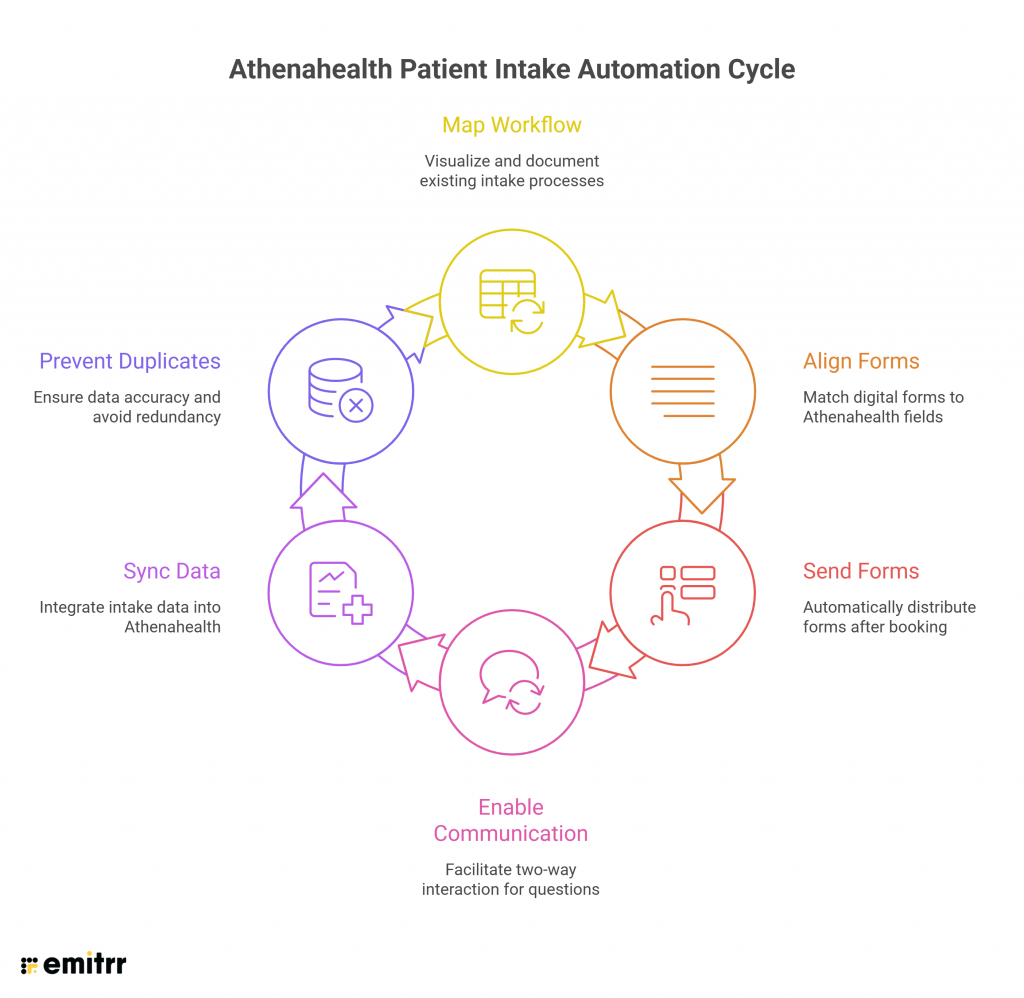
- Map Your Existing Patient Intake Workflow inside Athena
- Align Digital Forms With Athenahealth Data Fields
- Send Intake Forms Automatically After Booking
- Enable Two-Way Communication for Intake Questions
- Sync Intake Data Directly Into Athenahealth
- Prevent Duplicate Records and Gaps in Data
What “Breaking Athenahealth Data” Actually Means
Let us begin by understanding what “breaking Athenahealth data” even means. So when practices automate intake incorrectly, several problems happen:
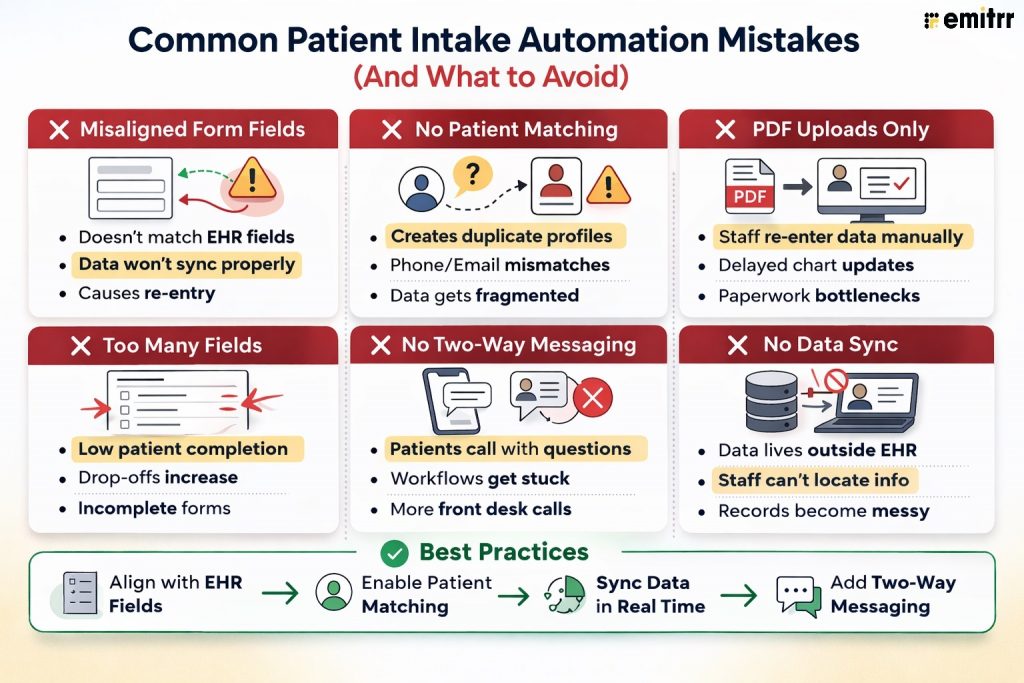
- Duplicate patient profiles get created
- Required fields don’t map properly
- Staff manually re-enter data from PDFs
- Insurance or demographic data doesn’t sync
- Intake forms live outside the patient chart
“Breaking” data means your workflows have become fragmented, which is leading to more manual work. Now, your goal here should be automation, and it should be done in a way that is clean and structured, so that data flows directly into the correct patient record without manual correction.
Before You Automate Intake
Even before you automate intake process, here are three core things you need to figure out first.
Audit Your Current Intake Process
See how your intake process works currently, and start documenting:
- When is the form sent?
- Who reviews it?
- Where is the data stored?
- What fields are mandatory?
You need this clarity before you layer automation on top.
Identify Required Data Fields in Athenahealth
Next, review:
- Demographics
- Insurance details
- Visit-specific intake questions
- Consent forms
- Clinical history fields
Your digital intake forms must match these exact fields. If they don’t align, staff will still need to re-enter information manually.
Set Data Ownership
Clarify who owns what:
- Front desk handles demographics and insurance
- Clinical team reviews history and symptoms
- Billing verifies payer information
Recommended for watching:
Steps to Automate Patient Intake Without Breaking Athenahealth Data
Once you have figured out the above-mentioned things, you are all set to automate patient intake inside Athena now.
Step 1: Map Your Existing Patient Intake Workflow inside Athena
Before changing anything, outline:
- Appointment booked
- Intake form sent
- Patient completes form
- Staff reviews
- Data entered into Athenahealth
You need to identify the above things so that you can find out where manual effort happens and where automation should focus.
Step 2: Align Digital Forms With Athenahealth Data Fields
This is the most important step. Every field in your digital intake form should:
- Match a specific field inside Athenahealth
- Use consistent formatting (phone, DOB, insurance ID)
- Avoid free-text fields where specific patient details is required
The logic here is simple: if the form collects data that Athenahealth doesn’t recognize, then it won’t sync cleanly. For a smooth patient onboarding, you should be able to map fields correctly.
Step 3: Send Intake Forms Automatically After Booking
Once your forms are aligned, you need to set automated triggers.
For example:
- Send intake immediately after appointment booking
- Send reminder if not completed within 24 hours
- Send final reminder before the visit
This key step can remove manual follow-up from staff while ensuring forms are completed ahead of time.
Learn more about setting up automated reminders inside Athena.
Step 4: Enable Two-Way Communication for Intake Questions
Patients often have questions while filling out intake forms. If they get stuck, they call your office, and this is where automation breaks.
Instead, enable two-way messaging inside Athena so patients can:
- Ask clarification questions
- Confirm receipt of forms
- Notify staff of updates
This will help you in reducing inbound calls and keep the intake process smooth.
Learn more about Two-way texting inside Athenahealth:
Step 5: Sync Intake Data Directly Into Athenahealth
Forms should not be emailed as PDFs for manual upload.
Completed intake data should:
- Sync directly into the correct patient profile
- Update demographic and insurance fields
- Attach structured responses inside the chart
If staff still need to copy and paste information, the automation isn’t complete. This is where bi-directional sync comes in handy. Patient communication tools like Emitrr are one of the few platforms that offer two-way data sync, so that patient data gets automatically sync & update inside Athenahealth.

Step 6: Prevent Duplicate Records and Gaps in Data
Duplicate records typically happen when:
- Intake forms create new patients instead of matching existing ones
- Phone numbers or emails don’t match existing records
- Data sync fails due to formatting inconsistencies
To prevent this:
- Use appointment-based matching
- Sync using unique patient identifiers
- Test new workflows before full rollout
- Monitor early submissions for errors
Always run a pilot before scaling intake automation practice-wide.
How Emitrr Automates Patient Intake Without Data Errors
Wondering how to make the above steps possible? This is where you can add a tool like Emitrr to your practice if you want to automate your patient intake fully integrated into Athenahealth.
With Emitrr:
- You can trigger Intake forms automatically after appointment booking
- You can align forms with Athenahealth data fields
- Responses that come in sync directly into the patient profile, no need to manually update.
- You can enable two-way SMS, so that patients can text you to ask questions during intake instead of calling you.
- Every conversation and update is logged back into Athenahealth
- No duplicate records are created due to structured patient matching
- Emitrr’s multi-language messaging helps you support diverse patient populations
The biggest highlight of Emitrr is that since it uses bi-directional sync, intake data doesn’t live in a separate system, instead it updates Athenahealth in real time.
This approach works especially well for:
- Multi-provider practices
- High-volume clinics
- Teams astruggling with manual intake entry
- Practices trying to reduce front desk congestion
Common Intake Automation Mistakes
Best Practices for Clean Data Sync
Follow these best practices to be able to sync patient data smoothly into your Athena EHR:
- Standardize patient intake templates by visit type
- Use structured fields instead of open text when possible
- Set up automated reminders for incomplete forms
- Ensure all intake data writes back into the patient record
- Audit sync performance monthly
Key Takeaways
Automating patient intake in Athenahealth only works if the data flows back cleanly into the right patient record. If forms don’t match EHR fields or sync properly, staff end up re-entering data and fixing duplicates.
The safest way to automate intake is to align digital forms with Athenahealth’s structured fields, trigger them automatically after booking, and ensure responses write back into the patient chart in real time.
If your team is still uploading PDFs, copying data manually, or dealing with duplicate profiles, your intake automation isn’t complete.
Book a demo with Emitrr to see how structured form sync, two-way messaging, and bi-directional integration can automate intake without breaking your Athenahealth data.
FAQs
Athenahealth supports intake workflows through its portal and internal documentation tools. For automated SMS delivery, structured data sync, and advanced intake routing, practices often use an integrated communication platform.
Use structured field mapping, appointment-based matching, and bi-directional sync to ensure intake data updates existing patient profiles instead of creating new ones.
Align digital forms with Athenahealth data fields and ensure responses sync directly into the EHR rather than relying on PDFs or manual uploads.
Yes, if your communication platform supports secure SMS-based form delivery with direct sync back into Athenahealth.