
Introduction
A patient calls to reschedule while your receptionist is checking appointment availability. The calendar is open, but answering means finding the phone platform, switching tabs, and returning to the schedule.
That interruption repeats during patient callbacks, billing inquiries, and staff handoffs. Staff need information from one screen and call controls from another.
A Chrome extension for business calling brings phone access into the browser. With the updated Emitrr Chrome extension, staff can make and receive calls from any tab without keeping the Emitrr tab open. Incoming calls show caller details with answer and decline options in a popup. Outbound calling and active-call controls work through the extension itself.
For healthcare teams working across calendars, patient records, and account screens, this means fewer navigation steps during each conversation.
This guide covers setup requirements, incoming calls, outbound dialing, call controls, and how to use the Emitrr Chrome extension in everyday front-desk workflows.
AI Summary
- A Chrome extension for business calling connects browser-based call handling with your business phone service.
- Emitrr lets staff make and receive calls in Chrome without keeping the Emitrr tab open.
- Incoming calls display caller details and answer or decline options directly in a popup.
- Staff can start outbound calls from Chrome and use mute, hold, transfer, and hang-up controls within the extension.
- Before use, confirm account access, install the official extension, check permissions and audio equipment, and test calling.
- The extension supports scheduling conversations, patient callbacks, billing inquiries, and staff handoffs while other Chrome tabs remain accessible.
What a Chrome Extension for Business Calling Does
A Chrome extension for business calling is a browser add-on that provides access to a business phone service. It lets staff answer, dial, and manage calls while working in other browser tabs.
Connection to the phone service
The phone service carries the conversation, while the extension provides the controls. Voice over Internet Protocol, or VoIP, carries voice calls over an internet connection. Understanding how VoIP works explains why a VoIP Chrome extension still needs an active calling account, working audio equipment, and reliable connectivity.
A browser softphone is a software-based calling interface that uses your computer’s microphone and speakers or headset. A business phone Chrome extension makes that interface accessible through the browser. It is one way to use a browser-based phone system, rather than a separate replacement for the phone service.
Incoming call handling
With Emitrr, incoming calls in Chrome ring while another tab is active. An incoming call popup shows caller details and answer or decline options. Staff can answer calls without switching tabs to find the phone platform first.
Outbound call access
Staff can open the Chrome calling extension and start outbound business calls without returning to Emitrr. This is useful when the information needed for a callback is already open in a calendar, patient record, or account screen.
Active call management
Browser call controls let staff mute, hold, transfer, and end the conversation through the extension. They can reach those actions while referring to information elsewhere in Chrome.
Difference from click-to-call
A click-to-call link starts a dialing action when someone selects a phone number. A browser calling extension provides a broader interface for receiving and managing conversations. Emitrr’s click-to-call functionality offers related outbound access, while the updated extension also supports incoming calls and active-call controls.
“Any tab” refers to calling while working within Chrome. Closing the Emitrr tab is different from fully closing the browser.
Why Browser Calling Helps Teams Working Across Multiple Tabs
Browser-based business calling helps when the information needed to resolve a request sits outside the phone platform. Staff can access the conversation while keeping the relevant work screen close at hand.
Scheduling calls
During patient scheduling calls, staff need to check availability, discuss options, and record the agreed appointment. The extension lets them answer through the popup while the calendar remains accessible. Whether the practice uses an existing calendar or dedicated practice scheduling software, staff complete the booking in that system while handling the conversation through the extension.
Patient callbacks
Before returning a call, staff may need to review the original request, check an appointment, or identify the colleague who can help. They can make calls from Chrome after reviewing that information, without navigating back to Emitrr. For example, a receptionist can check available appointment times before calling a patient who asked to reschedule.
Billing inquiries
Account screens often need to remain accessible during a billing conversation. Staff can review a balance or payment detail while speaking, then use hold if they need more time to check information. Business calling without switching tabs to the phone platform helps keep the conversation and account review connected.
Staff handoffs
A receptionist may answer a request that belongs with billing, referrals, or clinical staff. Transfer access through the extension helps them move the conversation to the appropriate person while reviewing the information needed for the handoff. Staff still follow the practice’s procedure for choosing the recipient and sharing context.
Other business workflows
Teams handling business calls while using a CRM, customer account screen, or service schedule can use the same approach. A customer relationship management system, or CRM, can remain accessible while staff calls through the extension. Contact lookup or record updates depend on the supported integration.
For front desk call management, the benefit is fewer navigation steps between answering, checking information, and taking action. The extension does not remove the administrative work, but it makes calling accessible alongside it.
If unanswered calls are part of the problem, the Missed Call Cost Calculator can help estimate their potential revenue impact using your practice’s inputs. Use the result as a planning estimate and a baseline for reviewing call handling.
What You Need Before Making Business Calls From Chrome
Before introducing a business calling extension, prepare the account, browser, and audio setup. A short readiness check helps identify access or sound problems before staff handle patient conversations.
- Account and feature access: Confirm that each user has an Emitrr account with the appropriate business calling access. Check current plan eligibility with Emitrr before rollout.
- Official extension installation: Use the verified Chrome Web Store listing. On managed work computers, an administrator may need to approve installation.
- Required permissions: Complete the permissions requested during setup, including the microphone access needed for calling. Follow your organization’s browser-access procedures.
- Working audio equipment: Check the microphone and selected headset or speakers. A headset helps keep callers’ voices from playing aloud at a shared front desk.
- Reliable connectivit: VoIP calling from a browser depends on the computer’s internet connection. Network instability can affect audio even when the extension is installed correctly.
Test an incoming call and an outbound call while another Chrome tab is active and the Emitrr tab is closed. Confirm that both people can hear each other. Then test mute, hold, transfer, and hang-up so staff understand the controls before daily use.
If audio fails, check the headset’s mute switch, microphone permissions, and selected input and output devices. If business call notifications do not appear, check that the extension is enabled and connected to the correct account. Contact Emitrr support for unresolved setup issues.
For a medical office phone system, readiness also includes using approved staff accounts and protecting patient information displayed on shared workstations. Follow the practice’s procedures for account access, screen privacy, and handling caller details.
Preparing browser calling for your practice? Watch Emitrr’s overview of healthcare phone-system safeguards and the requirements to review before rollout.
How to Make and Receive Calls With the Emitrr Chrome Extension
The Emitrr Chrome extension supports incoming calls, outbound calling, and active-call controls without requiring an open Emitrr tab. The following workflow explains how staff can use those capabilities alongside scheduling, records, and account screens.
Install and Connect the Emitrr Chrome Extension
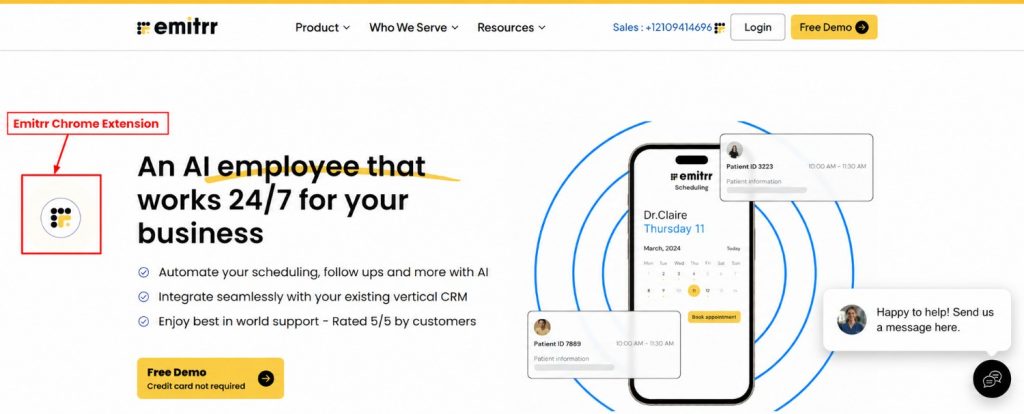
Install the extension on the computer and Chrome profile staff will use for calling.
- Open the official Emitrr Chrome extension listing.
- Select Add to Chrome, review the prompt, and select Add extension.
- Open the extension from Chrome’s extensions menu.
- Complete the Emitrr account connection process shown in the current interface.
- Grant the required permissions and check microphone and speaker or headset operation.
- Test incoming and outbound calling before handling patient conversations.
Pin the extension to the toolbar so staff can find it quickly. They should also know how to reopen it through Chrome’s extensions menu if the icon is hidden.
The account connection establishes calling access. Testing confirms that staff can use it from the browser tabs where they normally work.
Answer an Incoming Call From Another Chrome Tab
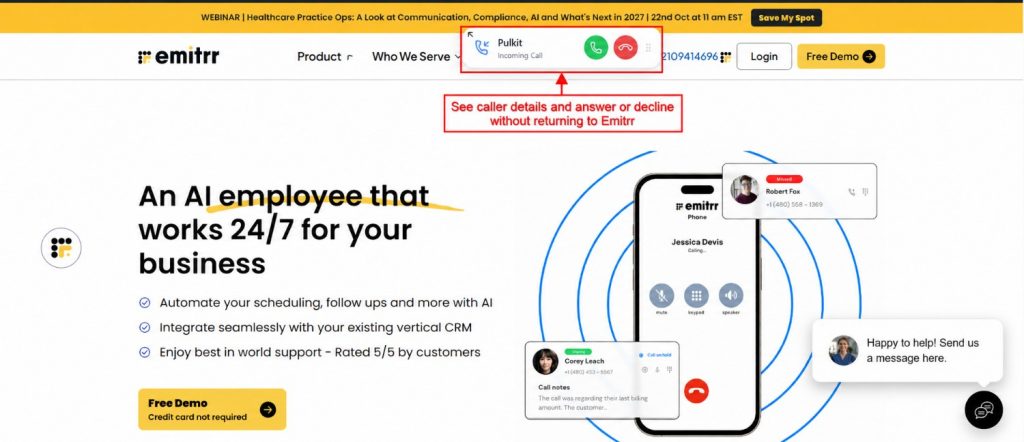
When an incoming call rings, the extension displays a popup with caller details and answer or decline options. So you do not have to return to Emitrr.
For a scheduling request, answer through the popup and continue referring to the appointment calendar. You can discuss available times while keeping the schedule accessible.
Caller details help staff prepare for the conversation. Follow the practice’s identity-verification procedure before sharing patient or account information. This lets staff receive calls in Chrome while working elsewhere in the browser. The popup brings the answer controls to them instead of requiring them to locate the Emitrr tab.
Make an Outbound Business Call From the Extension
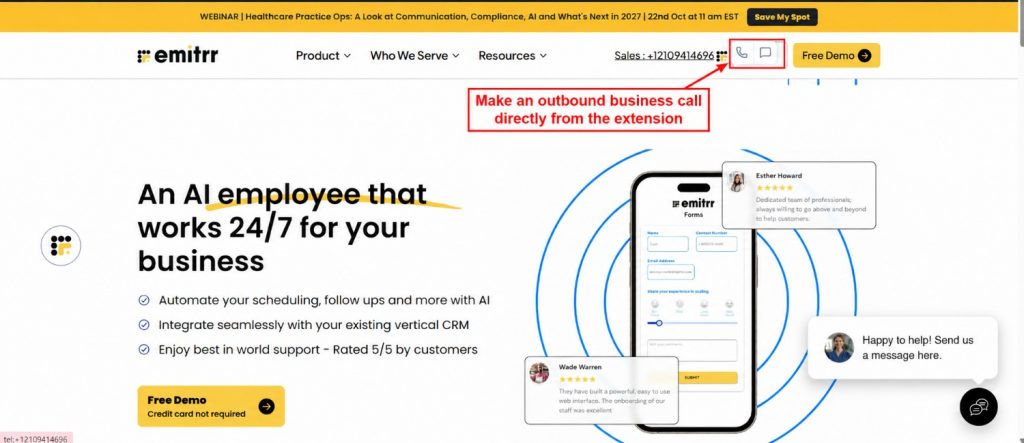
Review the information needed for the callback, then open the extension and use its outbound calling interface. Follow the dialing options displayed in your current version. Confirm the number and intended recipient before starting the call. For a patient callback, review the request and any relevant appointment information first.
Once connected, access the active-call controls through the extension. Staff can work through outbound calls from Chrome without reopening the Emitrr tab between conversations.
For teams evaluating a web-based business phone, this is a useful workflow to test during a demo: review information in one tab, start a callback through the extension, and manage the conversation while that information remains accessible.
Mute or Hold a Call While Checking Information
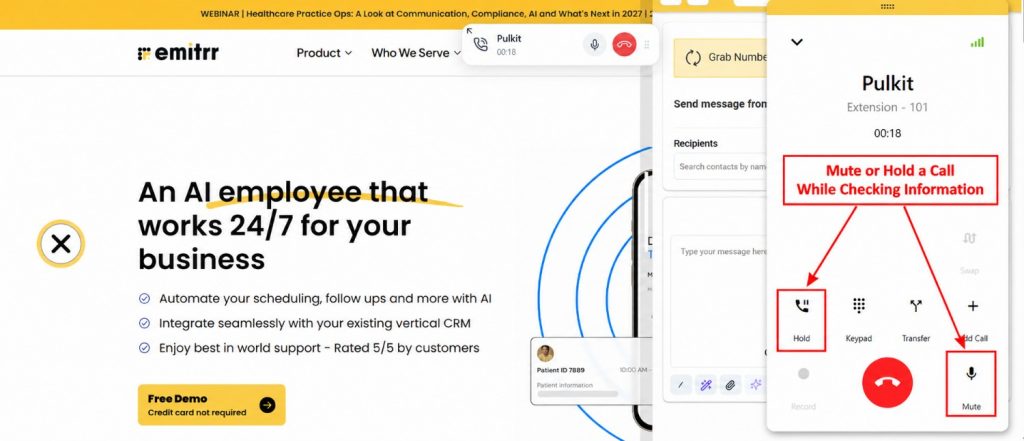
- To mute calls in Chrome, use the extension’s mute control when you need to stop microphone audio from reaching the caller. For example, you might briefly confirm a detail with a colleague. Unmute before speaking to the caller again.
- To put calls on hold, use the hold control when the conversation needs to pause while you check information. Explain what you are checking before placing the caller on hold, then resume the conversation when ready.
During a billing inquiry, staff might use hold while reviewing an account detail. During a scheduling conversation, they might mute briefly to ask a nearby colleague about availability.
Both controls work through the extension. Confirm that the call is resumed and the microphone is unmuted before continuing.
Transfer a Call to the Appropriate Staff Member
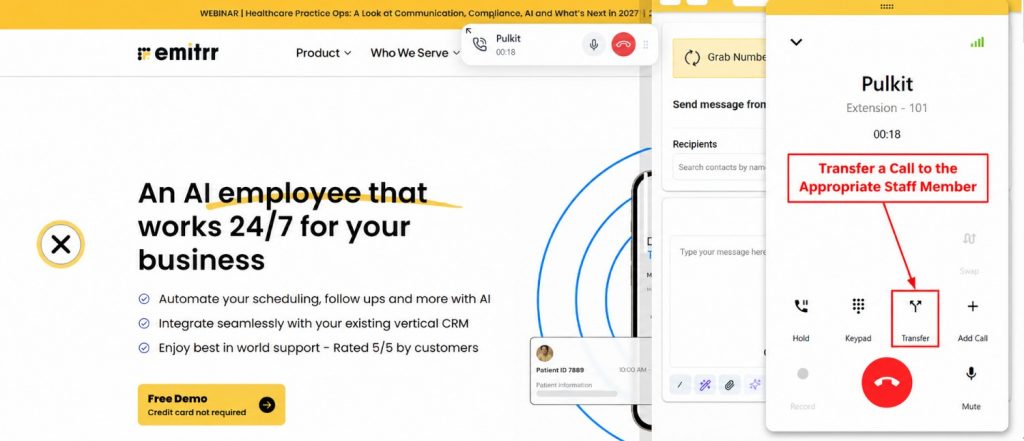
To transfer calls from Chrome, access the extension’s transfer control and follow the available destination and handoff options in your account. Suppose a patient reaches reception with a billing question. The receptionist can explain who will help, open the transfer interface, and move the conversation through the supported workflow.
Review transfer destinations and behavior during setup so staff know how to complete common handoffs. Understanding VoIP call transfers also helps distinguish a direct transfer from a handoff that includes speaking with the receiving colleague first.
Business call transfers still require staff to choose the appropriate recipient and follow the practice’s handoff procedure. The extension makes the transfer action accessible while they work in another tab.
End the Call and Continue the Work in Progress
Before ending the conversation, confirm the agreed next step. For a scheduling call, repeat the appointment details. For a follow-up request, clarify who will respond and what the patient should expect.
Use the extension’s hang-up control to end the call. Then complete the required scheduling, account, or documentation work in the relevant system.
After arranging a new appointment time, for example, the receptionist can finish the calendar update and record any required note. Automatic call logging or record updates depend on the available features and integrations in the account.
Ending through the extension lets staff continue the work already open without navigating back to Emitrr.
Choosing Between the Chrome Extension, Web App, and Deskphone
The right calling method depends on where staff spend their day and which controls they prefer. Compare each option against the tasks around the conversation, rather than choosing only by device preference.
| Calling method | Best-fit workflow | Interface | Equipment | Setup considerations |
| Chrome extension | Staff working across calendars, records, billing screens, or CRM tabs | Incoming-call popup and extension call controls | Computer with a microphone and headset or speakers | Extension installation, account connection, permissions, and call testing |
| Web app | Staff primarily working inside Emitrr’s communication interface | Calling controls within the web application | Computer with a microphone and headset or speakers | Account access, browser permissions, audio setup, and connection checks |
| Deskphone | Staff who prefer a physical handset and dedicated phone controls | Handset, buttons, and device display | Supported deskphone with required network and power connections | Device compatibility, provisioning, user or extension assignment, and testing |
The difference between a softphone and hardphone is how staff access calls: through software or a physical device. Each still needs an appropriate phone-service setup.
A scheduling coordinator working across browser tabs may prefer the extension. Someone managing conversations mainly within Emitrr may prefer the web app. A receptionist accustomed to a handset may favor a deskphone.
During evaluation, test the tasks each role performs most often. Check how staff answer, hold, transfer, and finish a conversation. Review the options within Emitrr’s VoIP phone system and confirm the setup requirements for the calling methods your team intends to use.
Key Takeaways
- A Chrome extension for business calling provides phone access while staff work in other browser tabs.
- Emitrr’s incoming-call popup shows caller details with answer and decline options.
- Staff can make and receive calls from any tab without keeping the Emitrr tab open.
- Mute, hold, transfer, and hang-up controls work through the extension itself.
- Account access, permissions, audio equipment, and connectivity should be checked before daily use.
- Choose the extension, web app, or deskphone around each role’s workflow and equipment preferences.

FAQs
It is a browser add-on that connects with a business phone service and provides calling access through Chrome. The Emitrr Chrome extension for business calls supports incoming calls, outbound calling, and active-call controls while staff work in other tabs.
Yes. With the updated Emitrr Chrome extension installed and connected for calling, you can make and receive calls from any Chrome tab without keeping the Emitrr tab open.
Yes. Mute, hold, transfer, and hang-up controls work from the extension itself. Check the transfer destinations and handoff options available in your account during setup.
The extension uses your Emitrr calling setup. Confirm how your existing business number is connected to that service and which number appears on outbound calls. Installing the extension alone does not transfer or configure an existing phone number.
The updated workflow supports calling without an open Emitrr tab. Receiving calls after Chrome is fully closed has not been confirmed. Keep Chrome running during extension use and ask Emitrr which calling option fits times when the browser is unavailable.
An Emitrr account is required, and plan access for the extension’s calling functionality should be confirmed with Emitrr. Check eligibility for the staff members who will use it before rollout.
Conclusion
Front-desk staff need call controls close to the schedules, records, and account information they use throughout the day. Returning to the phone platform adds another step to answering questions and completing callbacks.
A Chrome extension for business calling makes those controls accessible within the browser. Emitrr lets staff answer incoming calls with caller details in the popup, start outbound calls, and use mute, hold, transfer, and hang-up controls without keeping the Emitrr tab open.
Book a demo to see the Emitrr Chrome Extension in action.


 4.9 (400+
reviews)
4.9 (400+
reviews)