
Introduction
Setting up a new deskphone and reusing an existing handset both require the correct calling configuration. VoIP desk phone provisioning gives a phone the settings it needs to connect to its business phone service and work with the intended user and extension.
Consider a practice giving a former employee’s handset to a new front-desk coordinator. Moving the phone to another desk does not change its assignment. The existing device association must be released, and the phone must be provisioned for the correct extension before it returns to service.
This guide explains provisioning versus re-provisioning, secure provisioning URLs, existing-phone migration, and Emitrr’s process for setting up or reassigning a business deskphone.
AI Summary
- VoIP desk phone provisioning configures a handset for its business phone service, intended user, and extension.
- Re-provisioning retrieves the applicable configuration again. It differs from rebooting a phone or restoring factory settings.
- Emitrr automatically generates and manages secure provisioning URLs while staff continues using the current Public Provisioning URL.
- Existing provisioned phones migrate when they next request provisioning from Emitrr. A reboot is needed if that request does not happen automatically.
- Unlock or remove an already provisioned device before factory resetting it or moving it to another extension.
- Confirm the user, extension, incoming calls, outgoing calls, and relevant line keys before returning the handset to staff.
What VoIP Deskphone Provisioning Means
VoIP desk phone provisioning gives a physical internet-connected phone the configuration it needs to use its business calling service. That configuration associates the handset with the appropriate account, user, and extension.
Voice over Internet Protocol, or VoIP, carries calls over an internet connection. The technology behind how VoIP works allows the conversation to travel over the network. VoIP phone provisioning supplies the settings a particular handset needs to connect to that service.
A VoIP provisioning server supplies the configuration. The phone provisioning URL tells the handset where to request it. The exact process depends on the phone provider, supported handset model, and device configuration.
With automatic phone provisioning, also called auto-provisioning for VoIP phones, the handset retrieves its settings from the provisioning service. Administrators do not need to enter every setting individually. Manual desk phone configuration involves entering the required settings through the handset’s supported administration interface.
IP phone provisioning also helps maintain the connection between equipment and its intended user. A handset at reception may be assigned to an individual employee or a shared front-desk extension, depending on the practice’s arrangement.
For example, a former employee may have used extension 204, while the new coordinator needs extension 208. Business phone provisioning must associate the handset with the intended extension. A working dial tone alone does not confirm that assignment.
Planning your deskphone setup? Watch this overview of VoIP’s pros and cons for broader context before your rollout:
When a Deskphone Needs Provisioning or Re-Provisioning
The action you need depends on whether you are introducing a new handset, retrieving an existing configuration, or changing the device’s assignment. Restarting a phone, provisioning it again, and clearing its settings serve different purposes.
Use this comparison before making changes to a handset:
| Situation | Action | Purpose | Assignment consideration |
| Setting up a new handset | Initial provisioning | Obtain the business phone configuration | Confirm the intended user and extension before setup |
| Retrieving configuration again | Re-provisioning | Obtain the applicable configuration again | Check the resulting user and extension assignment |
| Existing phone migrating to Emitrr’s secure flow | Allow the provisioning request; reboot if needed | Complete migration when the phone requests configuration from Emitrr | Existing provisioned phones should continue working normally during migration |
| Moving a phone to another extension | Unlock or remove the device, then re-provision | Associate the handset with the intended extension | Verify the new user and extension before returning the phone to service |
| Factory resetting an already provisioned handset | Unlock or remove the device before resetting, then provision again | Restore factory settings and set up the handset again | Confirm the correct assignment after provisioning |
A reboot restarts the handset. Depending on its configuration, restarting may also cause it to request provisioning.
A factory reset restores the handset’s factory settings. The phone then needs the appropriate setup before it can return to business use.
Re-provisioning retrieves configuration from the provisioning service again. It may be part of a supported setup or reassignment procedure, but it does not mean the same thing as rebooting or resetting.
A desk phone factory reset should therefore follow the supported procedure for the task. It is not a necessary first step for every configuration update. Broader VoIP setup involves service and network preparation. Provisioning focuses on getting the correct business configuration onto the handset.
How Secure Provisioning URLs Work
A provisioning URL directs the handset to its configuration source. Emitrr’s updated flow keeps the existing setup process while automatically generating and managing a secure provisioning URL in the backend.
Once a phone reaches the Emitrr Activate stage or is successfully provisioned, Emitrr generates the secure URL. It is unique and can differ by user or device.
The two URLs have different roles:
- Public Provisioning URL: The current URL staff continues using in the supported provisioning process.
- Secure provisioning URL: The generated URL that Emitrr automatically updates and manages in the backend.
Staff does not need to maintain a separate list of generated secure URLs or manually replace them during the update. This reduces the administrative work involved in secure phone provisioning while preserving the familiar setup process.
Already provisioned phones move to the secure flow when they next request provisioning from Emitrr’s server. If a handset does not make that request automatically, it needs to be rebooted to complete migration.
Secure URL management is one part of phone administration. A broader HIPAA-compliant VoIP checklist addresses additional considerations for healthcare communication, including access and operating procedures.
How Emitrr Deskphone Provisioning Works
Emitrr deskphone provisioning combines the existing setup flow with automatic secure-URL management. Administrators confirm the handset’s intended assignment, follow the supported provisioning procedure, and verify the result.
The steps differ for a new handset, an existing phone receiving the secure provisioning update, and a device moving to another extension. These distinctions help practices evaluate the work involved in managing phones as employees and responsibilities change.
Set Up a New Deskphone
Start by confirming who will use the handset and which extension it should receive. If it will serve a shared reception role, confirm that assignment before beginning.
Check that the handset is supported for your Emitrr setup. Use the instructions supplied for that model rather than applying another phone’s menu steps.
Follow this sequence:
- Confirm the intended user and extension. Establish the correct phone user assignment before provisioning.
- Follow the supported handset instructions. Use the current Public Provisioning URL through the documented setup process.
- Complete activation. Emitrr generates the secure provisioning URL when the phone reaches Emitrr Activate or is successfully provisioned.
- Verify the completed device assignment. Confirm that the handset is associated with the intended user and extension.
- Test incoming and outgoing calls. Check that the phone rings as expected and that both parties can hear each other.
Emitrr handles the generated secure URL automatically. Administrators remain responsible for choosing the correct assignment and checking the completed setup.
Within Emitrr’s VoIP phone system, staff extensions help organize business calling. Checking the handset’s assignment before handoff helps prevent a new employee from receiving equipment configured for someone else.
Update an Already Provisioned Deskphone
Existing provisioned Emitrr phones automatically migrate to the secure provisioning flow when they request configuration again from Emitrr’s server. They should continue working normally during this process.
If a handset does not request provisioning automatically, reboot it to complete migration. When you need to reboot a VoIP phone, choose a time when it is not handling a call, since the restart temporarily makes that handset unavailable.
Staff does not need to manually replace the generated secure provisioning URL. Emitrr updates and manages it in the backend. After the update, confirm that the handset retains its expected assignment and can make and receive calls. The secure provisioning migration does not require a factory reset.
If the handset does not retrieve its configuration after the supported restart procedure, contact support with the device details and observed behavior before making further changes.
Unlock a Device Before Resetting or Reassigning It
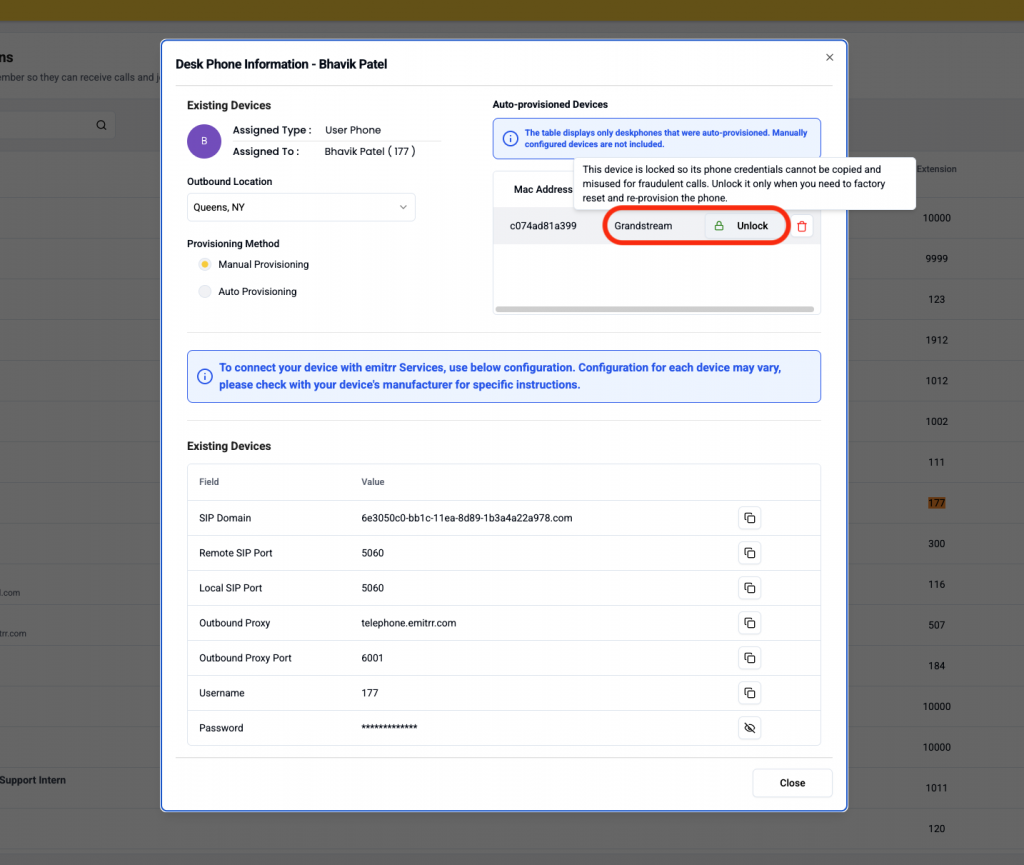
Before you factory reset or move a phone to another extension, unlock the provisioned phone or remove its existing device association in Emitrr.
In Emitrr, navigate to:
Phone Users and Extensions → Auto-provisioned Devices
Identify the correct handset using the information available in the device list. Check the selection carefully if the practice has several phones of the same model.
Use the Unlock control or the documented removal action before continuing with the reset or reassignment.
This releases the existing association so the handset can be provisioned again for the intended user and extension. For example, when a former billing employee’s phone moves to reception, the existing device association must be handled before the reception assignment is completed.
Unlocking is the first part of that change. The phone still needs to go through the applicable provisioning procedure and be checked afterward.
Re-Provision the Phone for the Correct User and Extension
After releasing the existing device association, follow the supported procedure to re-provision a VoIP phone for its intended user and extension. Perform a factory reset only where the procedure requires it.
Use this sequence:
- Confirm the previous association has been released. Complete the unlock or removal step first.
- Follow the applicable handset procedure. Reset the phone only if required by the supported instructions.
- Provision the handset for the intended user and extension. Follow the current Emitrr setup process.
- Check the completed assignment. Confirm the correct user and extension before handing the device to staff.
- Test calls and review line keys. Verify incoming calls, outgoing calls, audio, and relevant extension shortcuts.
Desk phone re-provisioning should finish with a configuration that matches the employee’s actual role. A phone that can make a call may still have the wrong assignment or shortcuts.
If you reassign a desk phone extension,check expected call routing as well. Confirm that calls intended for that employee or role reach the appropriate destination. For a front-desk handset, test the relevant call transfer workflow. This helps verify that the employee can handle patient calls after the reassignment.
Configure BLF and Speed Dial on Provisioned Deskphones
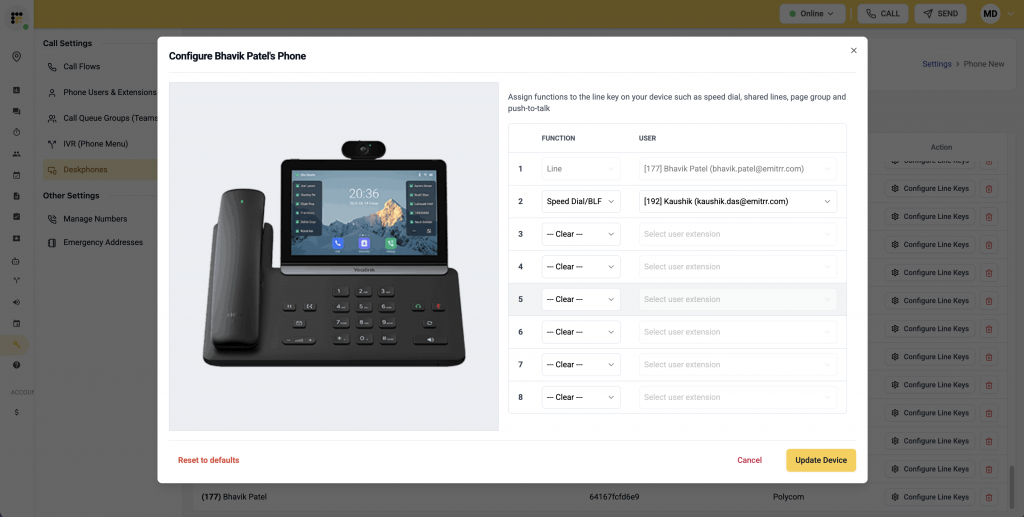
BLF line keys show the status of monitored extensions directly on a supported deskphone. Emitrr supports Busy Lamp Field, or BLF, and speed dial line keys, with automatic configuration available for phones configured through provisioning.
BLF provides extension status monitoring. A front-desk coordinator can see whether a colleague’s monitored extension is idle, on a call, or ringing before deciding what to do next.
To configure the line keys, navigate to:
Settings → Deskphone under Phone Settings → Configure Line Keys
Select the desired line-key option and assign the extension.
The BLF lights indicate the monitored extension’s status:
- Green: The extension is idle.
- Red: The extension is on a call.
- Flashing red: The extension is ringing.
When the monitored extension is ringing, pressing its flashing BLF key lets the user pick up that call. When the extension is idle, pressing the key works as a speed dial and calls that extension directly.
For example, a reception employee may monitor another front-desk extension. If that colleague steps away and their phone rings, the employee can use the flashing key for desk phone call pickup. When the colleague is available, the idle extension key provides a direct calling shortcut.
This differs from VoIP call transfers, which move a conversation that is already in progress. BLF supports the status monitoring, direct dialing, and ringing-call pickup described above.
Automatic BLF line-key configuration applies to phones configured through provisioning. If a handset was configured manually, its BLF line key also needs to be configured manually on the phone.
After a reassignment, review the handset’s desk phone speed dial and BLF line keys. Confirm that they point to the colleagues the new user needs, then test the supported behavior.
Key Takeaways
- Provisioning gives a handset its business calling configuration and extension association.
- Emitrr automatically generates and manages secure provisioning URLs while staff continues using the current Public Provisioning URL.
- Existing provisioned phones migrate on their next provisioning request, with a reboot needed if that request does not happen automatically.
- Unlock or remove an already provisioned device before factory resetting it or moving it to another extension.
- Verify the assignment, incoming calls, outgoing calls, and relevant BLF and speed dial keys before returning the handset to staff.
FAQs
VoIP deskphone provisioning gives a physical internet-connected phone the configuration needed to use its business calling service. It connects the handset with the appropriate account, user, and extension.
Re-provisioning retrieves configuration again. Rebooting restarts the handset, while factory resetting restores factory settings. A reboot may trigger a provisioning request depending on the configuration, but the actions serve different purposes.
No. Emitrr automatically generates, updates, and manages the secure provisioning URL in the backend. Staff continues using the current Public Provisioning URL through the supported setup process.
The update does not require a factory reset. Existing provisioned phones migrate when they request provisioning again from Emitrr’s server. If a phone does not make that request automatically, it needs to be rebooted to complete migration.
Go to Phone Users and Extensions → Auto-provisioned Devices. Identify the handset, unlock or remove its existing association, and follow the supported re-provisioning procedure for the intended user and extension. Confirm the new assignment and test calls afterward.
Emitrr’s automatic BLF configuration applies to phones configured through provisioning. A manually configured handset needs its BLF line key configured manually on the phone as well.
Conclusion
VoIP desk phone provisioning is complete when the handset has the correct business calling configuration, user, and extension, and staff can use its expected calling functions.
Emitrr handles secure provisioning URLs automatically and migrates existing phones when they next request configuration. When resetting or reassigning an already provisioned handset, unlock or remove its existing association first, then follow the supported provisioning procedure.
Finish by checking the assignment, testing incoming and outgoing calls, and reviewing the relevant BLF and speed dial keys.
Book a demo to see how Emitrr manages business deskphones.

 4.9 (400+
reviews)
4.9 (400+
reviews)