
Introduction
Patient intake often begins with an appointment but quickly turns into a chain of manual tasks. Staff select forms, send links, request insurance cards, check signatures, remind patients, answer questions, and transfer completed information into another system. When these steps depend on memory or disconnected tools, patients may arrive with missing paperwork, and the front desk must finish the work during check-in.
Patient intake automation connects those steps in one rules-based workflow. An appointment, referral, or patient-status event starts the process. The patient receives the correct digital intake forms by text or email. The system tracks what has been completed, follows up on missing requirements, stops reminders at the right time, and escalates exceptions to staff. Depending on the electronic health record or practice management system integration, completed data and documents may also be added to the patient record.
This guide explains how to automate patient intake in seven steps, which intake tasks are suitable for automation, how to manage incomplete submissions, and where staff oversight remains essential. It also shows how Emitrr connects appointment data, digital forms, SMS, AI-assisted information collection, reminders, patient replies, staff escalation, and supported EHR/PMS workflows.
AI Summary
- Patient intake automation connects appointment data, digital forms, patient communication, reminders, completion tracking, and staff follow-up.
- The workflow should begin when an appointment is booked or another qualifying event occurs.
- The correct intake packet should be selected according to patient type, appointment, specialty, provider, or location.
- SMS and email can deliver secure, mobile-friendly intake links before the visit.
- Automated reminders should stop once the required intake is complete.
- Incomplete, conflicting, or sensitive submissions should create tasks or escalate to staff.
- EHR/PMS integration can reduce duplicate entry, but available data exchange and write-back vary by system.
- Emitrr can connect appointment-triggered intake requests, two-way texting, reminders, incomplete follow-up, and staff escalation in one workflow.
Quick Steps to Automate Your Patient Intake Process
To automate your patient intake process:
- Use an appointment, referral, or patient-status event to trigger the intake workflow.
- Assign the correct intake packet based on patient and appointment details.
- Send a secure intake link through SMS or email.
- Track form, signature, and document completion.
- Send automated reminders for outstanding intake requirements.
- Follow up on incomplete or abandoned intake.
- Escalate unresolved cases to staff and update the patient record where supported.
The strongest automated intake workflow does more than replace paper forms. It coordinates delivery, completion tracking, patient intake reminders, exception handling, and record updates while preserving human review for questions and information that cannot be resolved safely through predetermined rules. Effective intake process automation coordinates delivery, completion tracking, reminders, exception handling, and supported record updates rather than simply replacing paper forms.
What Parts of Patient Intake Can Be Automated?
Repetitive, predictable, and rule-based activities are the strongest candidates for patient intake task automation. Clinical decisions, conflicting information, sensitive patient questions, and unusual cases should remain under staff control.
- Workflow initiation: Start intake after an appointment is booked, a referral is received, or a patient record is created.
- Form assignment: Select forms according to patient type, specialty, appointment, provider, procedure, or location.
- Form delivery: Use automated form delivery to send secure links through SMS or email.
- Patient registration: Collect demographic, contact, insurance, and responsible-party information for automated patient registration.
- Medical information collection: Collect medical history, medications, allergies, and appointment-specific responses.
- Document collection: Request insurance cards, identification, referrals, images, and prior records.
- Electronic signatures: Collect consent, privacy acknowledgment, treatment authorization, and financial-policy signatures.
- Completion tracking: Identify submitted, pending, incomplete, and abandoned intake requirements.
- Patient reminders: Send automated intake reminders according to completion status and appointment timing.
- Two-way follow-up: Let patients ask questions or report technical, language, or accessibility problems.
- Task creation: Create staff work items when information is missing or requires review.
- Staff escalation: Route unresolved, conflicting, or sensitive cases to the appropriate employee.
- Record updates: Transfer information or attach completed documents to the EHR/PMS where supported.
- Reporting: Track completion, response, escalation, appointment-readiness, and staff-workload metrics.
Automation should support the care team rather than attempt to interpret every response. For example, a system can identify that an allergy field was left blank and request completion. If the patient reports a possible new allergy or provides information that conflicts with the record, staff or a qualified clinical team member should review it.

How to Automate Patient Intake in 7 Steps
The exact setup depends on the practice’s scheduling system, EHR or PMS, form requirements, patient population, and chosen patient intake software. The goal is to automate predictable actions without removing staff oversight from decisions, exceptions, or sensitive communication.
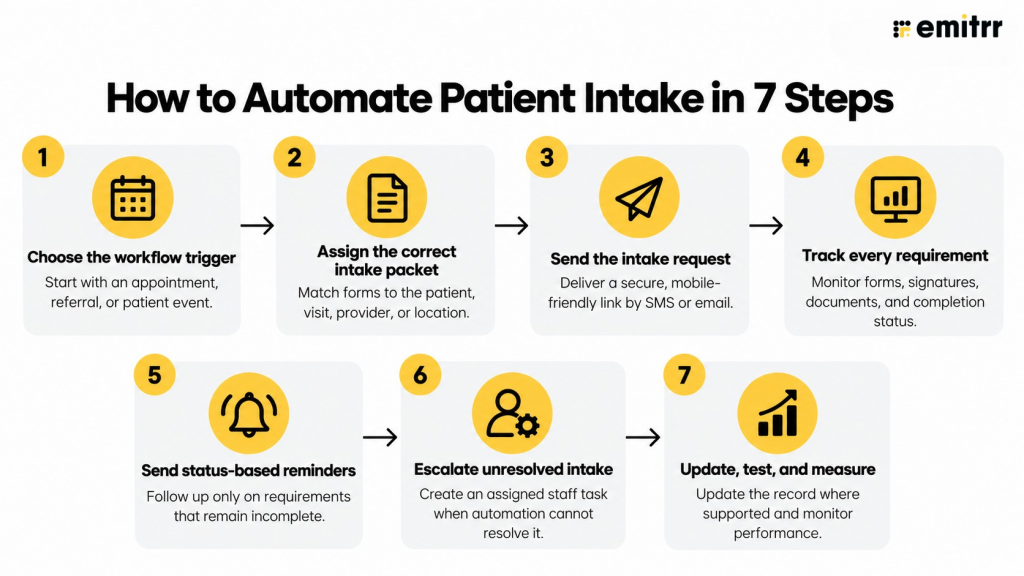
Step 1: Choose the Event That Starts the Intake Workflow
Every automated patient intake process needs a reliable trigger. For scheduled visits, the most useful trigger is usually a new appointment entering the schedule. The workflow can then use appointment and patient data to determine what should happen next.
Other useful triggers include:
- A referral is received
- A new patient record is created
- An appointment is rescheduled
- A procedure is scheduled
- An existing patient reaches a required form-renewal date
Define how the workflow should respond when an appointment is changed or canceled. A rescheduled visit may require a new deadline but not a second intake packet. A canceled visit should stop future reminders. Duplicate appointments should not generate duplicate requests.
Confirm whether the trigger runs in real time, through a scheduled synchronization, or through an application programming interface (API). Before launching across the practice, test that the trigger consistently receives the patient, appointment, provider, procedure, and location information required by the next step. Reliable triggers are the foundation of pre-visit intake automation because every later action depends on accurate appointment and patient data.
Step 2: Assign the Correct Intake Packet
The intake packet should reflect the patient and the planned visit. Sending every patient the same full packet creates unnecessary work, encourages incomplete submissions, and may collect information the practice does not need.
Start by separating new-patient requirements from returning-patient updates. Then use available details to assign forms by:
- Appointment type
- Specialty
- Procedure
- Provider
- Location
- Patient age
- Insurance category, where appropriate
Include only the forms, signatures, and documents required for that visit. Conditional logic can hide irrelevant questions, while known demographic information may be prefilled when the system supports it. Use required fields for critical information, but keep a path for patients who cannot answer or need assistance.
The practice should also define renewal rules. Medical history, consent, privacy acknowledgment, and financial policies may follow different schedules. Review those rules against the practice’s clinical, operational, payer, and legal requirements rather than applying a single universal expiration date.
Step 3: Send the Intake Request Through SMS or Email
Once the correct packet has been selected, digital intake automation can deliver it at the appropriate point in the pre-visit timeline. Many practices use patient intake via SMS because a text places the link on the device patients are likely to use. Email can serve as an additional or alternative channel.
The message should clearly identify the practice and explain why the patient is receiving it. A useful request includes:
- The patient’s name, where appropriate
- Appointment date
- Completion deadline
- Secure form link
- Estimated completion time
- A way to request assistance
Digital patient intake forms should work on a mobile device without unnecessary downloads or account creation. Workflows that collect or transmit protected health information (PHI) must use appropriate safeguards, access controls, vendor agreements, and practice procedures. A product feature by itself does not make the entire intake process compliant with the Health Insurance Portability and Accountability Act (HIPAA).
A HIPAA-compliant patient intake workflow requires more than secure digital forms. The practice must also apply appropriate access controls, vendor agreements, internal policies, and safeguards for handling PHI.
The SMS intake workflow should also capture delivery problems. Invalid numbers, failed texts, bounced emails, and other delivery failures need a defined fallback. Otherwise, a practice may assume the patient ignored the request when it was never received.
Watch this video to see how HIPAA-compliant digital intake forms streamline workflows, save staff time, and keep patient data secure.
Step 4: Track Forms, Signatures, and Documents
Effective patient intake management software should show the status of every required form, signature, and document rather than treating one submitted form as completed intake. The system may need to monitor whether:
- Forms were opened
- Required fields were completed
- Electronic signatures were added
- Insurance cards were uploaded
- Identification was submitted
- Referral documents were received
- Appointment-specific questionnaires were completed
Use clear statuses such as not started, in progress, submitted, incomplete, requires review, and completed. A submitted form should not automatically mark the entire intake workflow complete if another signature or document remains outstanding.
Staff should be able to see the current status without searching across several systems. That visibility helps the team distinguish patients who are ready for the appointment from those who need targeted support. It also prevents reminders from continuing after all requirements have been satisfied. Patient document collection should be tracked separately from form completion so the workflow can identify a missing insurance card, referral, identification document, or image.
Step 5: Send Automated Patient Reminders
Automated patient reminders should respond to intake status instead of sending the same message to every patient. A limited cadence may include:
- The initial request after booking
- A reminder if the patient has not started
- An intake completion reminder when one or more requirements remain unfinished
- A final reminder before the staff-escalation deadline
Each message should explain what remains outstanding and include the original secure link. A patient missing an insurance card should not receive the same message as someone who has not opened the packet. Targeted reminders are clearer and give the patient a specific next action.
Set frequency limits so patients do not receive several messages within a short period. Stop reminders immediately after completion, cancellation, or another disqualifying event. Two-way texting should let patients ask for help, and the workflow should provide an accessible alternative for people facing language, disability, connectivity, or technical barriers.
Step 6: Automate Incomplete Intake Follow-Up and Staff Escalation
An incomplete intake workflow should attempt appropriate follow-up before adding another manual task. First, identify the exact missing field, form, signature, or document. Then send a targeted request that tells the patient what to complete and how to get help.
Automation should not continue indefinitely. Define an escalation deadline based on the appointment time and the amount of staff preparation required. If the patient does not complete the requirement, reports a problem, provides conflicting information, or submits a response requiring judgment, create a task for the appropriate person or team.
The task should include the patient and appointment, the outstanding requirement, previous reminders, delivery status, and any patient reply. Clear ownership is essential. Sending every exception into a general queue can reproduce the same uncertainty the automation was meant to remove.
Not every case will be completed remotely. The escalation path should allow staff to contact the patient, correct inaccurate contact information, offer language or accessibility support, or prepare for assisted check-in. Sensitive or potentially clinical responses should bypass routine follow-up and go directly to an authorized team member.
Step 7: Update the Patient Record, Test the Workflow, and Measure Performance
After intake is completed and reviewed, the workflow should update the patient record to the extent supported by the EHR-integrated patient intake setup. Depending on the integration, this may involve transferring structured fields, attaching completed forms or PDFs, creating a work item, or logging the workflow outcome. The EHR or PMS should remain the primary system of record.
Do not assume that every integration supports the same exchange. Confirm which information can be read, written back, attached, or synchronized for the practice’s specific system and configuration. Information flagged for review should not be treated as approved merely because a form was submitted.
Before a full launch, test new appointments, rescheduled and canceled visits, duplicates, failed messages, partial submissions, patient replies, completed forms, and escalation deadlines. Confirm that completion stops reminders and that every staff task reaches a named owner.
Measure whether the workflow is reducing work and improving appointment readiness. Useful measures include intake completion rate, pre-visit completion rate, abandonment rate, reminder response rate, escalation rate, average staff follow-up, delivery failures, and the percentage of appointments arriving intake-ready. Review the results regularly to find forms, questions, or timing rules that cause repeated abandonment.
Example Automated Patient Intake Workflow
The following example shows how appointment data, automated actions, and staff intervention can work together from booking through record update.
| Workflow Stage | Trigger or Condition | Automated Action | Staff Action |
| Appointment booked | New appointment enters the schedule | Select the appropriate intake packet | None unless appointment data is incomplete |
| Intake request | Patient and appointment details are available | Send the secure intake link through SMS or email | None |
| Intake started | Patient opens the form | Track progress and submitted requirements | None |
| Intake not started | No activity within the defined time | Send an automated reminder | None |
| Intake incomplete | Required field, signature, or document is missing | Send a targeted follow-up identifying the outstanding requirement | Review only if the patient responds or the issue persists |
| Patient needs help | Patient replies with a question or reports a problem | Route the conversation to the shared inbox | Respond and resolve the barrier |
| Deadline reached | Intake remains incomplete near the appointment | Create a task and escalate it to the assigned staff member | Contact the patient or prepare for assisted check-in |
| Intake completed | All required items are submitted | Stop reminders and update the status | Review exceptions or flagged responses |
| Record update | Intake is approved | Transfer data or attach documents where supported | Verify information requiring manual review |
Common Patient Intake Automation Mistakes
Patient intake workflow automation can reduce repetitive work, but automation alone does not fix a confusing or inefficient process. If the underlying workflow contains unnecessary forms, unclear responsibilities, or poor follow-up rules, automating it may simply make those problems happen faster. Practices should simplify the intake process, define exceptions, and assign ownership before activating automation.
Automating the Existing Process Without Improving It
Moving every paper form and manual step into a digital workflow does not necessarily create a better experience. Review which information is actually required, remove duplicate questions, and eliminate unnecessary approvals before building the automated intake workflow.
Sending the Same Forms to Every Patient
A new patient, returning patient, procedure patient, and referral patient may have different intake requirements. Sending one universal packet can overwhelm patients and collect irrelevant information. Forms should be assigned according to patient type, appointment, specialty, provider, procedure, or location.
Asking Patients to Repeat Information Already on File
Patients become frustrated when they must repeatedly enter demographic, insurance, or medical information the practice already has. Where supported, known details should be prefilled or presented for confirmation. Only information that must be updated or renewed should be requested again.
Sending Intake Requests Too Late
If the intake link arrives shortly before the appointment, the patient may not have enough time to complete forms, locate insurance documents, or ask for help. Delivery timing should give both the patient and staff enough time to resolve incomplete requirements before the visit.
Continuing Reminders After Intake Is Complete
Sending reminders after all requirements have been submitted creates confusion and makes the workflow appear unreliable. Each reminder should check the patient’s current intake status and stop immediately after completion, cancellation, or another qualifying event.
Using the Same Reminder for Every Missing Requirement
A patient who has not opened the intake packet needs a different message from someone who completed the forms but forgot to upload an insurance card. Automated intake reminders should identify the specific outstanding requirement and provide a clear next action.
Giving Patients No Way to Ask for Help
Patients may encounter technical problems, misunderstand a question, need language support, or be unable to upload a document. Every intake request should provide a way to reply or contact the practice. Patient responses should reach a monitored inbox or assigned team.
Escalating Every Incomplete Form to Staff
Immediate escalation defeats the purpose of patient intake automation. The workflow should first use appropriate reminders and targeted follow-up. Staff escalation should occur when the deadline is approaching, automated follow-up has failed, the patient requests help, or the response requires human judgment.
Failing to Assign Escalated Tasks
Creating a task is not enough if no one is responsible for it. Every escalation should be routed to a named employee, role, or team. The task should include the patient, appointment, missing requirement, previous outreach, and expected next action.
Assuming Every EHR Integration Supports Full Write-Back
EHR and practice management system integrations vary considerably. Some may provide appointment data but offer limited document or field write-back. Practices should confirm exactly what the integration can read, transfer, attach, create, or update before designing the workflow around it.
Learn where intake workflows commonly break down and what practices can change to prevent avoidable delays, billing issues, and extra administrative work.
Treating Form Submission as Verified Information
A submitted form may still contain missing, conflicting, outdated, or sensitive information. Submission should confirm receipt, not automatic accuracy. Responses that meet predefined review criteria should be flagged for staff or clinical review.
Ignoring Language, Accessibility, and Technology Barriers
Not every patient can complete a mobile form independently. The workflow should provide multilingual communication where available, accessible form design, technical assistance, and an option for staff-supported or in-office completion.
Collecting PHI Through Inappropriate Channels
Digital intake often includes protected health information (PHI). Practices should use secure intake workflows, appropriate access controls, vendor agreements, and internal safeguards. Sensitive information should not be requested through channels that are not approved for the intended use.
Failing to Test Real-World Exceptions
A workflow may work for a standard appointment but fail when a visit is canceled, rescheduled, duplicated, or booked with incomplete contact information. Testing should cover failed messages, invalid numbers, abandoned forms, partial submissions, patient replies, appointment changes, and duplicate records before launch.
Failing to Monitor Performance
Patient intake automation requires ongoing review. Practices should monitor delivery failures, completion rates, abandonment points, reminder responses, escalations, and staff follow-up. If patients repeatedly stop at the same question or document request, the workflow should be adjusted.
The most reliable healthcare intake automation combines clear rules with visible exceptions. Staff should know what the system completed, what remains outstanding, why a case was escalated, and who is responsible for the next action.
How Emitrr Automates the Patient Intake Workflow
Emitrr serves as patient intake automation software by connecting patient communication, digital forms, AI-assisted information collection, task automation, and supported EHR/PMS workflows. This helps practices automate routine intake work while directing exceptions to staff for review.
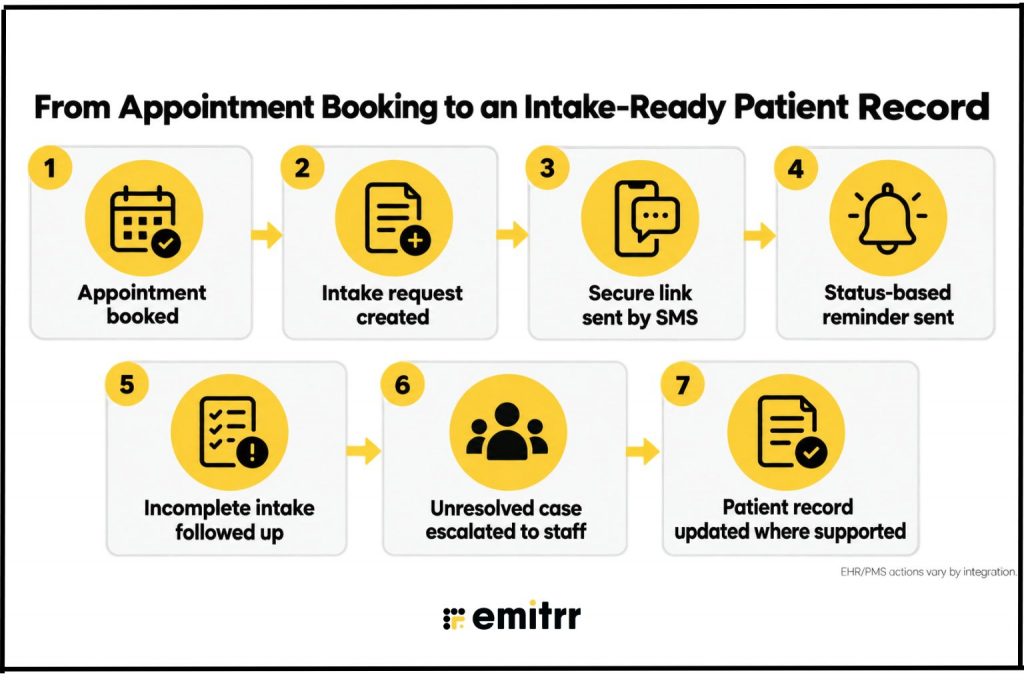
1. An Appointment or Referral Starts the Workflow
Emitrr can use appointment, patient, referral, or workflow information from a connected source to start pre-visit intake. Rules can account for patient type, appointment type, provider, specialty, procedure, or location, depending on the data available.
Workflows may be configured through native integrations, APIs, middleware, uploaded lists, or other supported data sources. This removes the need for staff to manually identify every patient who needs an intake request while allowing the setup to reflect the practice’s existing systems.
2. Emitrr Sends the Correct Digital Intake Forms
Emitrr can send mobile-friendly digital forms through SMS or email. Practices can use the workflow to collect demographic information, medical history, consent, insurance details, electronic signatures, and visit-specific responses. Patients may also be asked to provide insurance cards, identification, referrals, images, or other required documents.
The packet and delivery rules can be aligned with the patient and appointment rather than sending one generic set of forms to everyone. When PHI is involved, the practice must use the platform’s supported secure workflows and maintain the administrative and technical safeguards required for its environment.
3. Emitrr AI Collects Structured Intake Information
Emitrr AI agents can collect required intake fields through supported voice or messaging workflows. They can ask configured follow-up questions when required information is missing and organize the patient’s responses into structured fields or a concise summary for staff review.
This can support intake, referral, scheduling, or order-related workflows without requiring staff to read an entire unstructured conversation. The AI follows configured workflow rules and guardrails. Questions involving clinical judgment, conflicting information, or matters outside those rules should be escalated to staff.
4. Incomplete Intake is Followed Up Automatically
Emitrr can track outstanding forms, signatures, and documents and send patient intake follow-up when intake has not started or remains incomplete. Messages can identify the specific missing requirement instead of repeatedly sending the original request.
Reminders stop when the configured requirements are complete. Patients can reply through two-way texting when they have questions or encounter a problem. Multilingual communication can also be supported where configured.
5. Staff Receive Exceptions Instead of Chasing Every Patient
When automation cannot resolve an issue, Emitrr can route the patient reply into a shared inbox and escalate the case to the appropriate staff member or team. Conversations or tasks can be assigned and organized with tags, statuses, and internal notes.
The staff member can see the missing requirement, appointment information, earlier follow-up, and patient response. This keeps the team focused on exceptions that need human review instead of manually checking every patient’s intake status.
6. Emitrr Creates EHR Work Items and Patient-Record Artifacts Where Supported
Depending on the EHR and configured workflow, Emitrr can create supported work items such as patient cases or order groups, write completed forms or PDFs into charts, attach intake documents, log communication outcomes, or transfer structured information. A concise summary can help staff review the submission without reading every message.
These capabilities are integration-specific. The available artifacts, fields, and write-back actions must be confirmed for the practice’s EHR, workflow, and implementation.
7. Emitrr Connects Intake With Existing EHR and Legacy Systems
Emitrr supports native integrations with systems such as athenahealth, eClinicalWorks, Spry, PatientNow, and DrChrono, along with other supported EHR, PMS, and customer-management platforms. Depending on the connector, an implementation may use one-way or two-way synchronization, schedule data, chart logging, or supported write-back.
The Emitrr Chrome extension can support patient communication from compatible EHR interfaces. When a native connector is unavailable, APIs or middleware such as Zapier or Keragon may be used for an appropriate configured workflow. The EHR or PMS remains the primary system of record, and the exact data exchange should be confirmed before implementation.
Key Takeaways
- Patient intake automation should connect triggers, forms, communication, completion tracking, follow-up, and staff escalation.
- The workflow should begin with a reliable appointment, referral, or patient event.
- Form packets should change according to the patient and appointment rather than using one universal packet.
- Automated reminders should respond to intake status and stop when requirements are complete.
- Incomplete intake requires targeted follow-up rather than repeated generic reminders.
- Staff should handle exceptions, patient questions, conflicting information, and sensitive responses.
- EHR/PMS integration must be assessed according to the specific data exchanged and write-back supported.
- Performance should be measured through completion, escalation, staff effort, delivery, and appointment readiness.
- Emitrr connects patient intake requests, SMS, reminders, two-way communication, incomplete follow-up, and staff escalation.
FAQs
Automating patient intake means using rules and connected software to trigger forms, deliver intake links, track completion, send reminders, follow up on missing requirements, and escalate exceptions without staff initiating every step manually.
Practices can automate workflow initiation, form assignment, form delivery, registration, document requests, electronic signatures, completion tracking, reminders, task creation, and supported record updates. Clinical decisions, conflicting information, and sensitive questions require human review.
Connect the forms to an appointment, referral, or patient event. Use rules to select the correct packet, send a secure link through SMS or email, track every requirement, remind patients about missing items, and escalate unresolved cases.
Yes. When the scheduling system or EHR/PMS provides a reliable appointment trigger, the workflow can select and send the appropriate intake packet automatically. Available timing and data depend on the integration.
It should identify the exact missing requirement, send limited targeted reminders, let the patient request help, and create an assigned staff task if the issue remains unresolved or requires judgment.
Yes, but capabilities vary. An integration may read appointment data, attach completed documents, transfer fields, log communication, or create supported work items. Practices should confirm the exact data exchange and write-back available for their system.
It can support a HIPAA-compliant workflow when appropriate safeguards, access controls, secure transmission, vendor agreements, and practice policies are in place. No intake tool makes an organization compliant by itself.
Emitrr can connect appointment or referral triggers with digital forms, SMS or email delivery, AI-assisted information collection, completion-based reminders, two-way texting, incomplete-intake follow-up, staff escalation, and supported EHR/PMS actions.
Conclusion
Effective patient intake automation connects appointment data, the correct intake packet, secure delivery, completion tracking, reminders, incomplete follow-up, and staff escalation. Each step should respond to the patient’s status instead of relying on generic messages or manual checking.
The purpose is to reduce repetitive administrative work without removing human oversight. Staff remain responsible for exceptions, questions, conflicting information, sensitive responses, and anything that requires professional judgment.
Emitrr brings digital intake, patient communication, AI-assisted information collection, follow-up, task routing, and supported EHR/PMS workflows together. Book a demo with Emitrr to see how your practice can automate patient intake from appointment or referral through an intake-ready patient record.

 4.9 (400+
reviews)
4.9 (400+
reviews)