

Introduction
A missing insurance number leads to another patient callback. A clinical note is still waiting on the provider. Someone checked the payer portal yesterday, but nobody recorded the next action. Meanwhile, the scheduling team cannot tell the patient what happens next. These gaps increase administrative workload and delay scheduling. Clear prior authorization management gives each request an owner, a current status, and a next action.
Prior authorization automation uses software to collect information, assign tasks, follow up on outstanding items, and send updates from confirmed stages. Some connected systems also support electronic submission and payer status updates. The scope depends on the payer, service, software, and available integrations. Clinical review and payer decisions still require the appropriate people. This blog explains which tasks to automate, the setup steps, how to evaluate software, and how Emitrr supports communication around the process.
AI Summary
- Prior authorization automation connects information collection, task assignment, follow-ups, patient notifications, and scheduling coordination.
- Start with one request type, a reliable trigger, required information, and an assigned owner.
- Use forms, SMS, or voice to collect patient-supplied details; send clinical documentation requests to the responsible team.
- Track status through staff-confirmed updates or supported payer connections.
- Stop completed reminders and escalate unresolved tasks to a named owner.
- Emitrr supports communication around authorization through AI agents, two-way texting, reminders, routing, and supported EHR workflows.
Quick Steps to Automate Prior Authorization
- Choose the event that starts the authorization workflow.
- Collect required information and request missing documents.
- Create the request record and assign ownership.
- Coordinate submission and record confirmation.
- Automate status follow-ups and staff escalation.
- Notify patients and coordinate scheduling from confirmed decisions.
- Record outcomes, test the rules, and measure performance.
Which Prior Authorization Tasks Can Be Automated
Prior authorization task automation works best for repeated tasks with a clear input and completion rule. Asking for one missing field, assigning a request, or reminding an owner to check status is easier to control than a task that requires clinical judgment.
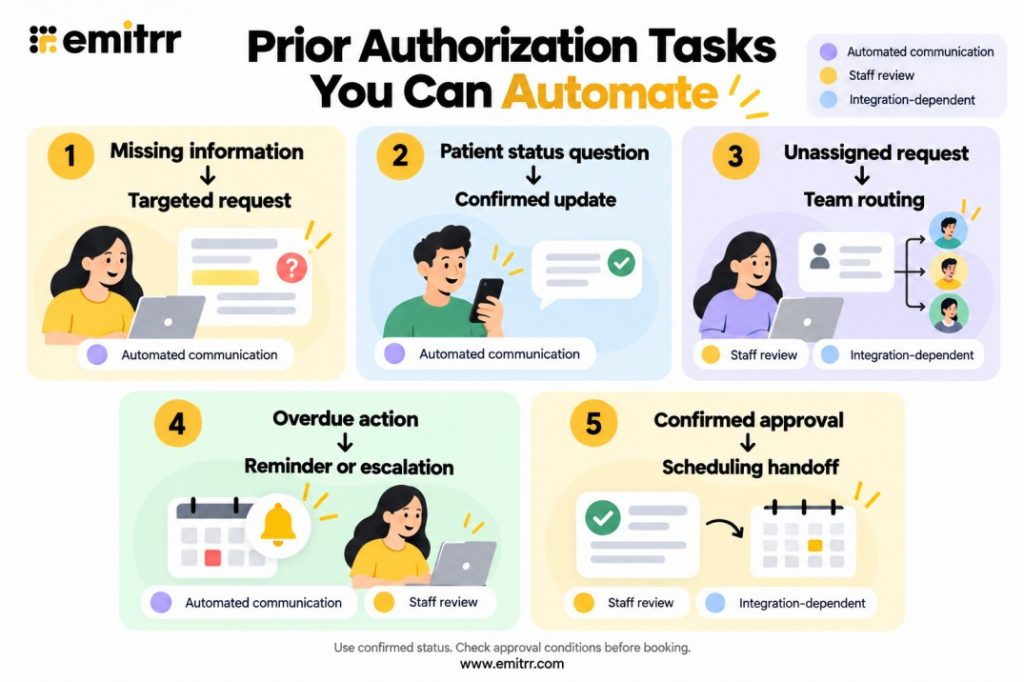
For requests arriving through referral intake in specialty clinics, a missing document should create a specific request to its source. A general reminder to “complete the authorization” gives the receiving team too little direction.
The following tasks can support prior authorization process automation, with different levels of system access and staff review:
- Request initiation: Start a configured workflow from an order, referral, recorded authorization requirement, or staff-created request. Confirm the requirement and prevent duplicates.
- Patient information collection: Request missing insurance or contact details through structured forms or guided outreach, then validate responses.
- Documentation requests: Ask the patient, clinician, or referring organization for the specific outstanding item. Clinical evidence needs qualified review.
- Task assignment: Route work by request type, location, provider, or team, with a backup for unavailable owners.
- Submission coordination: Prepare staff tasks and record receipt. Electronic submission depends on a verified payer connection.
- Status follow-ups: Schedule staff checks or act on status data received through supported integrations.
- Patient notifications: Send approved messages from confirmed stages, using appropriate privacy safeguards.
- Reminders: Follow up while an item remains outstanding; stop after completion, cancellation, or a relevant change.
- Escalations: Alert a named person or reassign overdue work where supported.
- Scheduling coordination: Create a booking handoff after the decision and relevant authorization conditions are checked.
- Record updates: Log outcomes or attach documents where the connected system supports those actions.
- Reporting: Measure staff effort, outstanding actions, and communication performance using reliable data.
Automated prior authorization does not mean every request can move from order to approval without staff involvement. Insurance requirement checks need current, relevant information. Clinical evidence needs qualified review, and a payer may request information that falls outside the configured workflow.

How to Automate Prior Authorization
Set up prior authorization workflow automation around your practice’s request types, electronic health record (EHR), authorization tools, payer connections, and staffing. Each step needs four answers: what starts it, what action happens, who owns it, and what ends it. Build those rules into the system so it can reliably read and update the necessary information.
Step 1: Choose the Trigger for the Prior Authorization Workflow
Workflow triggers are events that start an automated action. Choose one your team can verify and track consistently.
- Define the starting event: Use a qualifying EHR order, recorded authorization requirement, accepted referral, or staff-created request. A patient call or text can start information collection; it does not confirm clinical need or payer requirements.
- Identify the connection: Establish whether the trigger uses a native integration, an application programming interface (API), a scheduled sync, or staff action. An API lets systems exchange data; a scheduled sync may introduce a delay.
- Prevent duplicate work: Match the patient and request before creating another task. Voicemail-to-text workflows can make incoming phone requests easier to route, but unclear details still need checking.
- Set change rules: Decide who handles changed orders, canceled requests, or repeated contacts. Keep these actions connected to the wider process described in how to automate the patient journey in healthcare.
- Assign responsibility: For example, an imaging coordinator confirms the requirement for an ordered MRI and starts one request. This step is complete when that request has a verified trigger and an owner.
Step 2: Automate Information Collection Plus Documentation Requests
Define the information required for the selected request type. Use the supported EHR integration to retrieve available fields or attachments, then ask only for what is missing or needs confirmation.
- Collect patient-supplied details: Include name, date of birth, phone, insurer, member ID, and policy group. For medication requests, confirm the medication name, reported dose, and pharmacy; route discrepancies to the clinical team. Preferred appointment times can support later scheduling.
- Confirm administrative fields: Record the requested service, provider, clinic, existing authorization number, and verified payer requirements. Obtain Current Procedural Terminology (CPT), Healthcare Common Procedure Coding System (HCPCS), and diagnosis codes from records or qualified staff validation.
- Use guided outreach: Configured AI voice agents and two-way SMS flows can ask consistent questions using practice-approved scripts or knowledge sources. Allow staff reviews when a response falls outside the configured scope. HIPAA-compliant forms via text provide a structured collection option. Confirm the recipient and use appropriate safeguards for protected health information (PHI).
- Request clinical evidence from its source: Prior authorization documentation requests should name the missing note, result, treatment history, or PDF and its source. Route supporting clinical documentation to the responsible clinical team for review. Urgency and medical necessity need qualified clinical input.
- Validate before moving forward: Receiving a document does not establish that it is complete or relevant. Mark it received, then send it for the required review. Apply the collection principles in how to automate your patient intake process to authorization-specific fields.
- Define completion: The assigned coordinator confirms that required information has been validated or sends unresolved items to a named reviewer.
Collecting missing insurance details through digital forms? Watch this video for practical considerations when choosing HIPAA-compliant digital intake forms.
Step 3: Create the Request Record Plus Assigned Staff Tasks
Keep the request connected to the patient, service, and relevant conversation so staff can find the next action without searching several inboxes.
- Create the supported record: Use a Patient Case, Order Group, or another EHR work item when the integration supports write-back, meaning updates can be saved to the EHR. Otherwise, use the practice’s existing authorization system.
- Assign an owner and backup: Record the creation time, missing items, next action, and follow-up date. Use configured rules to assign the correct location, provider, or team.
- Preserve context: Link transcripts, summaries, available attachments, and previous outreach. Record where each document came from and where it is stored.
- Route responses by purpose: Organizing patient messages by intent helps separate an insurance-card response from a clinical or scheduling question.
- Keep statuses separate: Record creation does not verify coverage or payer receipt. Closing a conversation does not close the authorization request. This step ends when the record has an owner and a visible next task.
Step 4: Coordinate Submission Through the Supported Channel
Use the channel accepted for the patient’s plan and requested service. Electronic prior authorization requires a supported request-and-response connection; a digital form alone does not provide that connection.
- Choose the submission path: With a verified electronic connection, software may populate supported fields, attach documents, and submit the request. Without it, route prepared information to staff for the payer portal, fax, or another accepted channel.
- Check completeness: The submitting team verifies the patient, service, codes, provider, evidence, and destination. For fax submissions, follow the recipient and document-handling practices covered in HIPAA-compliant faxing.
- Record confirmation: Save the submission time, channel, reference, and receipt acknowledgment. Successful transmission is not approval. Missing acknowledgment should create a follow-up task.
- Verify product support: Confirm form population, attachment preparation, packet generation, and payer submission before including them in the setup. CMS’s finalized interoperability rule requires certain impacted payers to implement Prior Authorization APIs, generally beginning January 1, 2027, for non-drug items and services. It does not establish universal connectivity today.
- Define completion: The submitting team records documented receipt or assigns the task needed to resolve a submission problem.
Step 5: Automate Prior Authorization Status Follow-Up
Prior authorization status tracking needs a confirmed source. Prior authorization status automation can act on connected payer updates or prompt staff to check and record a response. A reminder alone does not retrieve payer status.
- Identify the status source: Use API-based updates where supported. Otherwise, prompt the owner to check the portal or call the payer and record the response, reference, check time, and next action.
- Act on confirmed changes: A request for more information should identify the outstanding item and alert its owner. Connect patient responses to the assigned task through a patient communication workflow.
- Set follow-up deadlines: Use applicable payer requirements, service urgency, and practice policy to define when checks and responses are due. Keep internal staff response targets separate from payer decision deadlines.
- Stop resolved reminders: Missing-information follow-up should end when the item has been validated. Prior authorization follow-up automation should also stop submission reminders after receipt. Replace outdated tasks when the next action changes.
- Escalate unresolved work: Name the backup or supervisor who receives overdue items. Confirm time-based alerts and reassignment support in the selected system, and retain check history to prevent duplicate calls.
Step 6: Trigger Patient Notifications Plus Scheduling Actions
Prior authorization automated messaging should use confirmed stages to send a clear next step. Automated prior authorization notifications work best when patients can reply and the responsible team receives their questions.
- Use verified updates: Trigger messages from confirmed submission, missing-information requests, approval, or denial. Record whether the source is the payer connection or an authorized staff entry.
- Keep prior authorization patient communication clear: For example: “We have submitted your request to your insurer. Our team will contact you when we have an update.” Use secure links for sensitive details, and route failed deliveries or unresolved replies to staff.
- Check approval conditions: Before booking, verify the service, authorization number, authorization validity dates, provider, location, and approved visits or units. Approval does not itself guarantee payment.
- Create the scheduling action: Use a prefilled scheduler task or supported booking functionality. From referral acceptance to appointment booking: how automation closes the gap explains how a completed prerequisite should reach the next team.
- Preserve booking restrictions: Block booking where required authorization remains unresolved under the practice’s rules. Respect “do not auto-reschedule” restrictions and recheck changed dates. Once booked, patient appointment reminders should follow the current appointment.
- Route denials for review: Assign appeal assessment or alternative planning to the responsible team. Clinical decisions and high-risk concerns require provider review. This step ends when the patient is updated, and the next action has an owner.
Patients waiting for authorization updates may be frustrated or worried. Watch this video for ways to set expectations, listen to concerns, and explain the next step clearly.
Step 7: Record Outcomes Plus Measure Automation Performance
Measure whether automation reduces repeated staff work and improves follow-through. Record results in the appropriate authorization system.
- Log the outcome: Save the decision, reason where available, timestamps, authorization conditions, and remaining actions. Link relevant communication and documents to the request.
- Measure administrative work: Track request volume, staff actions, information collection time, overdue actions, patient notification time, and scheduling handoff time. Define the start and end event for each measure.
- Measure turnaround time and deadline performance: Where records support it, report elapsed time between defined stages and the share of tasks completed by their follow-up deadlines. Separate patient, clinician, staff, and payer waiting time. Faster outreach does not necessarily change the payer’s decision time.
- Use reliable decision data: Report approval and denial rates only from confirmed authorization records. Do not attribute changes to messaging without evidence.
- Check record coverage: Conversation history shows outreach and responses. Submission evidence, payer decisions, document versions, and access logs serve additional purposes. Evaluate a HIPAA audit trail separately from communication history.
- Test before expanding: Check duplicate requests, changed orders, cancellations, failed messages, absent owners, stale statuses, and integration failures. Confirm that completed reminders stop and scheduling restrictions still apply.
How to Choose Prior Authorization Automation Software
Choose software against the work your team needs to complete. A platform may be strong at payer transactions, patient outreach, or staff coordination. “Automates prior authorization” is too broad to tell you which of those jobs it performs in your environment.
Match Capabilities to Your Prior Authorization Bottlenecks
Identify the task consuming the most avoidable effort. If staff repeatedly chase missing patient information, prioritize guided collection, targeted outreach, and completion tracking. If the burden is submission or payer status checks, prioritize verified payer connections and the relevant transaction support.
- Distinguish payer-connected authorization tools from prior authorization communication software. A communication platform can support patient outreach, reminders, routing, and handoffs while another system manages submission and payer decisions. The tools need a dependable way to share confirmed stages.
- Ask vendors to demonstrate a missing-document scenario: a missing document is requested, received, reviewed, and removed from the reminder queue. Check assignment, stop conditions, failed delivery handling, and staff escalation. For communication features, the criteria in how to choose the right HIPAA-compliant texting app can support evaluation of access controls, protected exchanges, and team use.
- Confirm SMS, voice, secure document exchange, and language support for the intended task. Ask how patient replies stay connected across providers and locations, and what staff see when a request needs human review.
Confirm Integration Depth Plus Implementation Requirements
Ask what the integration reads and what it writes. Access to demographics does not establish support for creating a Patient Case, attaching a document, retrieving payer status, or booking an appointment. Each action needs separate confirmation.
- Use your actual EHR and request type in the demonstration. The distinction explained in deep athena integration: what your phone system should do is relevant when evaluating whether an integration merely displays information or supports a particular workflow action. practices using another system should validate their own connection rather than assume equivalent behavior; the nextech workflow automation guide illustrates why system-specific evaluation matters.
- Establish how statuses enter the system, how patient and request identifiers are matched, and what happens after a failed sync. Verify communication logging, attachment handling, scheduling actions, and where the main authorization record is kept.
- Implementation also includes data preparation, templates, rule configuration, staff training, ongoing support, and maintenance. Assign someone to update rules when payer requirements, staff responsibilities, or connected systems change. Require a test of the chosen use case before relying on it in live operations.
Assess Administrative Savings Against Total Cost
Estimate savings for supported tasks using your practice’s own baseline. Count monthly requests, then measure time spent collecting information, checking status, updating patients, and coordinating handoffs. Include the staff review and exception handling that will remain.
- An illustrative calculation: 200 monthly requests multiplied by six minutes of staff time saved per request equals 1,200 minutes, or 20 hours. At an illustrative loaded labor cost of $30 per hour, that represents $600 in monthly staff capacity value. These figures are examples, not Emitrr results or a savings guarantee.
- Compare that value with subscription charges, setup fees, messaging or voice usage, integration costs, and ongoing maintenance. Use the same approach when comparing referral intake software vs manual intake ROI, but calculate authorization savings separately from other workflows to avoid double counting.
- Released time can support patient service or reduce backlogs without lowering payroll. During the pilot, also check whether the automation creates extra corrections or alerts. A workflow that sends more messages but leaves staff work unchanged has not delivered the intended improvement.
How Emitrr Supports Prior Authorization Automation
Emitrr connects patient outreach, information collection, reminders, and team routing around authorization. Its communication features can support a defined workflow alongside the practice’s authorization tools. Confirm payer connections and EHR actions for the intended setup.
- Structured information collection: Emitrr’s AI voice and SMS agents, including its AI Information Collector, guide patients through configured questions and confirm collected details. Digital forms capture missing information consistently. Teams can request a member ID without repeating intake; codes and clinical evidence still need qualified validation.
- Assigned request creation: Emitrr’s shared inbox, conversation assignment, tags, and internal notes connect patient responses to the responsible team. Supported EHR integrations may create Patient Cases, Order Groups, or other work items. Verify the exact write-back actions and keep the next task visible in the authorization record.
- Documentation preparation: Digital forms and surveys, Secure Chat, and two-way texting help teams request outstanding information and clarify responses. Supported EHR integrations can connect available records or attachments. Confirm document assembly and form population separately, and route clinical evidence for review before marking it complete.
- Submission coordination: Conversation routing, internal notes, and supported EHR work items pass context to the submitting team. Where the payer accepts fax, Emitrr’s cloud faxing supports sending, receiving, and delivery tracking. Transmission confirmation is not approval. Verify payer submission, packet generation, and portal actions before including them in the workflow.
- Status follow-ups with escalation: Automated reminders and team routing support follow-up, while Emitrr’s rule engine enables condition-based responses and assignment. Establish whether status comes from a supported connection or staff entry. Confirm time-based reminders, escalation, reassignment, and stop conditions for the chosen setup so each unresolved action has an owner.
- Decision-based communication and scheduling: Workflow-triggered messaging and two-way texting deliver configured updates from confirmed stages. Emitrr’s AI SMS Agent supports conversations and language translation. Supported scheduling integrations and online appointment scheduling can help move patients toward booking. Verify EHR write-back, authorization conditions, and practice restrictions before enabling that action.
- Outcome logging and reporting: Conversation history, recordings, transcripts, and AI summaries, including AI call summary and transcription, preserve communication for review. Supported EHR logging and reporting can help assess activity and workload. PA-specific turnaround and decision reporting require reliable authorization data; communication history alone is not a complete authorization audit trail.
Key Takeaways
- Start with a defined bottleneck and reliable workflow trigger.
- Collect missing information through targeted outreach to the right source.
- Assign ownership and record the next action.
- Base patient updates on confirmed status.
- Give reminders stop conditions and unresolved tasks escalation rules.
- Compare measured administrative savings with implementation and ongoing costs.
Frequently Asked Questions
Yes. A practice can automate patient information requests, conversation routing, reminders, and confirmed patient updates while staff use the payer portal. During vendor evaluation, ask which actions require a payer connection and which can run from staff-entered milestones.
Yes. Record submission and receipt as separate milestones, then start the appropriate follow-up tasks. Test that a failed submission creates a correction task rather than starting a routine “under review” message sequence.
It can request the specific document and route the task to its source. Receipt should trigger review, because an uploaded file may be incomplete, outdated, or unrelated. Only the designated reviewer should mark the clinical requirement complete.
Yes, if the platform supports a staff-entered milestone as a trigger. Define who can confirm the status and retain its source. Test corrected or reversed entries so an outdated notification does not remain queued.
Use verified location, provider, service, or responsibility fields in the routing rules. Include a fallback queue when those fields are missing, and a backup owner for absences. Test patients who receive care at more than one location before rollout.
Measure staff minutes saved on supported tasks, subtract added review and exception work, and compare the resulting capacity value with total costs. Use a representative pilot rather than the fastest requests alone. Avoid counting the same saved minutes in both authorization and patient intake estimates.
Conclusion
Prior authorization automation can reduce repeated information requests, missed follow-ups, and delayed handoffs when each task has an owner and a clear completion rule. Start with one repeatable workflow, test its exceptions, and expand based on measured results.
Emitrr supports that work through AI-assisted information collection, two-way texting, reminders, team routing, and supported EHR workflows. Book a demo with Emitrr to explore how these features can help your team coordinate authorization follow-ups and patient updates.

 4.9 (400+
reviews)
4.9 (400+
reviews)